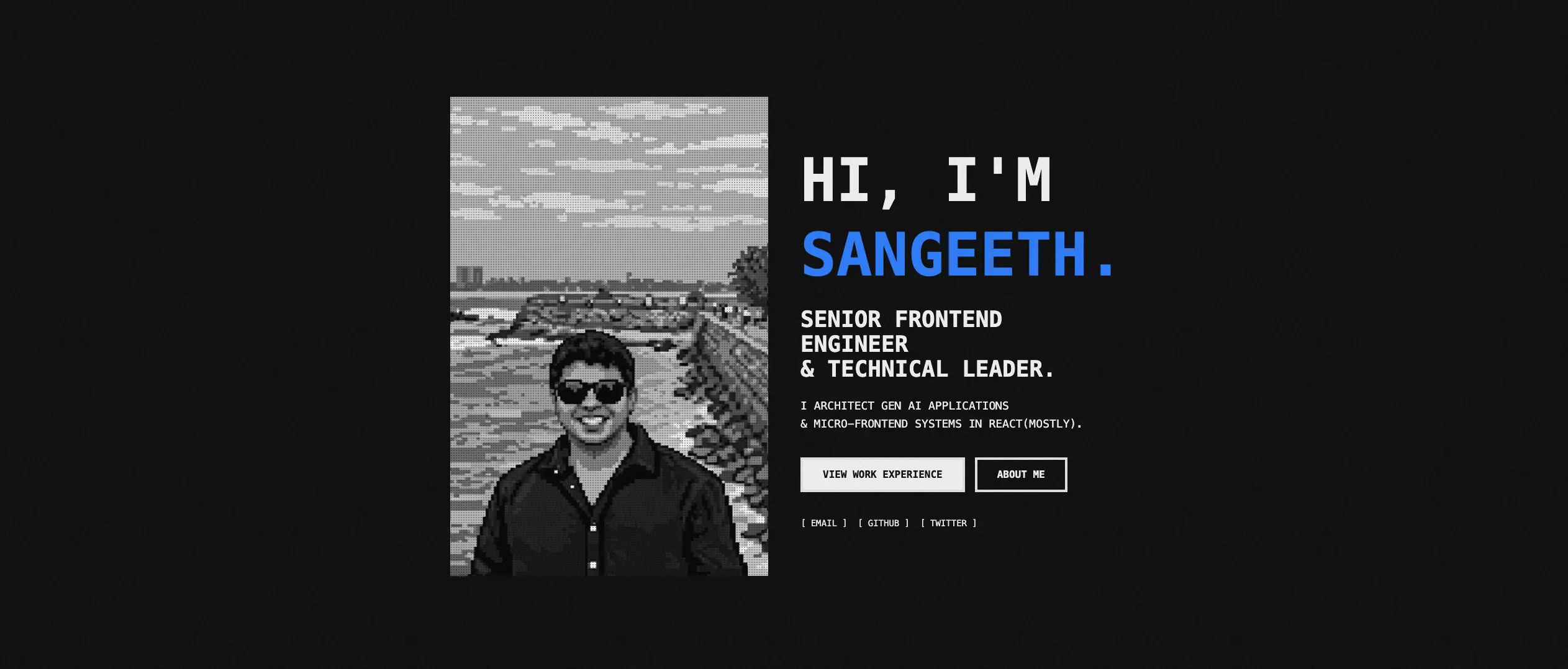
HOW THIS SITE IS BUILT
This is a technical deep-dive into building my personal portfolio site. For the project overview and design philosophy, see Personal Portfolio Site.
Note: This is a learning project. I started learning Astro through building this site, so the implementation isn’t perfect. I’m continuously improving it with better patterns and practices as I learn more. Consider this a snapshot of my current understanding, not a definitive guide.
Building a portfolio site in 2026 is different than it was five years ago. The tools are better, the frameworks are faster, and AI assistance makes the boring parts disappear. Here’s how I built this site and why I made the technical decisions I did.
The Stack
- Framework: Astro
- Language: TypeScript
- Styling: TailwindCSS v4
- Content: MDX
- Deployment: Cloudflare Pages
Each choice was deliberate. Let me explain why.
Why Astro?
I wanted a content-first framework that didn’t ship unnecessary JavaScript. Astro delivers exactly that.
Content Collections with Type Safety
Astro’s killer feature for portfolio sites is content collections. You define a schema using Zod, and Astro generates TypeScript types automatically. Invalid content fails the build before it reaches production.
 // src/content/config.ts
import { defineCollection, z } from 'astro:content';

const blog = defineCollection({
  type: 'content',
  schema: z.object({
    title: z.string(),
    date: z.date(),
    category: z.enum(['DESIGN', 'CODE', 'THOUGHTS']),
    description: z.string(),
    draft: z.boolean().default(false),
  }),
});

export const collections = { blog, projects };
This gives you build-time validation and auto-generated TypeScript types for every piece of content. If you typo a field name or use the wrong type, the build fails with a clear error message.
Zero JavaScript by Default
Astro generates static HTML. No React runtime. No hydration overhead. No unnecessary JavaScript. For a portfolio site where most content is static, this is perfect.
When you do need interactivity, Astro’s islands architecture loads JavaScript only for specific components. Most of my pages ship zero JavaScript—just HTML and CSS.
How Routing Works
Astro uses file-based routing. Files in src/pages/ become routes automatically:
src/pages/index.astro→/src/pages/blog/index.astro→/blogsrc/pages/projects/[slug].astro→/projects/*
For dynamic routes like blog posts and projects, you use getStaticPaths() to generate routes at build time:
 // src/pages/blog/[slug].astro
export async function getStaticPaths() {
  const posts = await getCollection('blog');
  return posts.map(post => ({
    params: { slug: post.slug },
    props: { post },
  }));
}
At build time, Astro calls this function, gets all blog posts from the content collection, and generates a static HTML page for each one. No server needed.
Content Management with MDX
All content lives in MDX files under src/content/. Blog posts, projects, the about page—everything.
MDX gives you markdown simplicity for writing with the power to embed Astro components when needed. I rarely use components in content, but it’s there when I need it.
How Posts Render
When you build the site, Astro:
- Reads all MDX files from
src/content/blog/ - Validates frontmatter against the Zod schema
- Generates TypeScript types for the content
- Compiles MDX to static HTML
- Applies syntax highlighting with Shiki
- Outputs static pages to
dist/
For syntax highlighting, I configured Shiki in the Astro config with dual themes for light/dark mode:
 // astro.config.mjs
export default defineConfig({
  markdown: {
    shikiConfig: {
      themes: {
        light: 'github-light',
        dark: 'github-dark',
      },
    },
  },
});
Shiki runs at build time, so syntax highlighting adds zero JavaScript to the page. Just pre-highlighted HTML with CSS.
Draft Management
The draft system uses environment variables to filter content:
 // In development: show all posts
// In production: hide drafts
export async function getPublishedPosts() {
  return getCollection("blog", ({ data }) =>
    import.meta.env.PROD ? !data.draft : true
  );
}
This lets me work on posts locally without publishing them. When ready, I flip draft: false in the frontmatter and deploy.
Styling with TailwindCSS v4
TailwindCSS v4 represents a fundamental shift from JavaScript configuration to CSS-native design tokens.
Why v4 Over v3
Tailwind v4 represents a fundamental shift from JavaScript configuration to CSS-native design tokens. The benefits are substantial:
- One less file to worry about: No
tailwind.config.jsneeded - Zero configuration: Just
@import "tailwindcss"and you’re done - CSS Variables: All design tokens exposed as native CSS variables you can reuse anywhere
- Modern CSS Features: Native cascade layers, registered custom properties with
@property
You can read more about the benefits of v4 here.
How Theming Works
I use CSS custom properties for theme colors that automatically adapt to light/dark mode:
 /* src/styles/global.css */
@import "tailwindcss";

/* Light mode colors */
:root {
  --color-background: var(--color-stone-100);
  --color-foreground: var(--color-zinc-950);
  --color-accent: var(--color-blue-600);
  --color-border: var(--color-zinc-950);
}

/* Dark mode colors */
.dark {
  --color-background: var(--color-zinc-950);
  --color-foreground: var(--color-stone-100);
  --color-accent: var(--color-blue-500);
  --color-border: var(--color-stone-200);
}

/* Tailwind v4 design tokens */
@theme {
  --font-family-mono: 'IBM Plex Mono', 'JetBrains Mono', monospace;
  --color-brutal-black: var(--color-zinc-950);
  --color-brutal-blue: var(--color-blue-600);
  --border-width-brutal: 4px;
  --shadow-brutal-sm: 4px 4px 0px 0px var(--color-shadow);
}
The @theme block defines design tokens that Tailwind uses to generate utility classes. The :root and .dark blocks define semantic colors that change based on the theme.
When you toggle dark mode (by adding/removing the dark class on the <html> element), all the semantic colors automatically update. Components don’t need to know about themes—they just use bg-background or text-foreground and it works.
Custom Component Classes
For reusable patterns like halftone effects, I create custom classes in separate CSS files:
 /* src/styles/halftone.css */
@layer components {
  .halftone-fade-right {
    position: relative;
    overflow: hidden;
    --halftone-dot-color: var(--color-halftone-dot);
  }

  .halftone-fade-right::after {
    content: "";
    position: absolute;
    inset: 0;
    background-image: radial-gradient(
      circle,
      var(--halftone-dot-color) 1px,
      transparent 1px
    );
    background-size: 4px 4px;
    mask-image: linear-gradient(to right, transparent 10%, black 100%);
  }
}
This creates a halftone pattern that fades from left to right. The @layer components directive tells Tailwind where to inject these classes in the generated CSS.
Implementing the Brutalist Aesthetic
Around 2021-2022, I first saw brutalist web design trending. Sites like Gumroad and Zapier were using heavy borders, stark contrast, and other minimalistic design principles. I really liked the aesthetic—it felt honest and focused on content rather than decoration.
My site doesn’t entirely follow strict brutalist principles, but it’s heavily inspired by that philosophy. The design is enforced through CSS design tokens and minimal styling rules.
Core Principles in Code
Heavy Borders: Defined as a design token (--border-width-brutal: 4px) and applied via utilities like border-4.
Monospace Typography: Set globally on the body via font-family: var(--font-family-base). Everything inherits monospace by default.
High Contrast: Semantic color tokens (--color-foreground, --color-background) ensure high contrast in both light and dark modes.
Project Structure
 src/
├── components/       # Reusable Astro components
│   ├── Footer.astro
│   ├── Header.astro
│   └── ui/          # UI components (Card, Button, etc.)
├── content/
│   ├── blog/        # Blog posts (MDX)
│   ├── projects/    # Project pages (MDX)
│   └── config.ts    # Content collection schemas
├── layouts/
│   └── Layout.astro # Base layout with <head>, theme toggle
├── pages/
│   ├── index.astro  # Homepage
│   ├── blog/
│   │   ├── index.astro        # Blog listing
│   │   └── [slug].astro       # Individual post pages
│   └── projects/
│       └── [slug].astro       # Individual project pages
├── styles/
│   ├── global.css   # Tailwind imports, design tokens, themes
│   └── halftone.css # Custom halftone patterns
└── utils/           # Helper functions for content queries

public/              # Static assets (images, fonts, etc.)
Content lives in src/content/ with schemas defined in config.ts. Components are in src/components/. Pages define routes. Styles are pure CSS with Tailwind v4.
The Build Process
Running bun run build:
- Astro reads all content from
src/content/directories - Validates frontmatter against Zod schemas (fails build if invalid)
- Generates TypeScript types for content collections
- Processes MDX files - compiles to HTML, highlights code with Shiki
- Calls getStaticPaths() for dynamic routes to generate all pages
- Renders each page to static HTML using layouts and components
- Processes CSS - Tailwind scans for class usage, generates optimized CSS
- Optimizes assets - images, fonts, etc.
- Outputs to dist/ - ready for deployment
The entire site is pre-rendered at build time. No server needed.
Build-Time Guarantees
If content doesn’t match the schema, the build fails:
 Error: Invalid frontmatter in blog/example.mdx
  - Expected date, received string
  - Missing required field: category
This catches typos, missing fields, and type mismatches before deployment. TypeScript provides compile-time safety for code, Zod provides it for content.
Deployment on Cloudflare Pages
I push to GitHub, and Cloudflare Pages:
- Detects the commit
- Runs
bun run build - Deploys the
dist/folder to their edge network - Invalidates cache
- Site is live globally in seconds
Every branch gets a preview URL automatically. Perfect for testing changes before merging to main.
Alternative: Wrangler CLI
I can also deploy directly using Wrangler (Cloudflare’s CLI) for more control over the deployment process. This is useful for manual deployments or when testing configurations locally before pushing to GitHub.
Future Plans with Cloudflare
Currently, the site is purely static—no Workers or edge functions. But I plan to add dynamic features using Cloudflare’s platform:
- Currently Playing: Show what I’m listening to on Spotify in real-time
- Page View Analytics: Track and display page views without external analytics
- Edge Functions: Other real-time features using Cloudflare Workers, KV storage, and D1 database
The beauty of Cloudflare Pages is that it integrates seamlessly with the rest of their platform. When I’m ready to add these features, I can deploy Workers alongside the static site without changing infrastructure.
The edge network means fast loading globally, and Astro’s static generation means instant page loads. Combined with zero JavaScript by default, pages feel instant.
What I’d Do Differently
What Worked:
- Astro’s content collections are perfect for portfolio sites
- TypeScript + Zod catch errors before production
- Tailwind v4’s CSS-native approach is cleaner than v3
- MDX for content strikes the right balance
What I’d Change:
- Could abstract more reusable components earlier
Lessons Learned
Content-First Frameworks Are Underrated
For blogs and portfolios, Astro is perfect. React frameworks like Next.js are overkill unless you need heavy interactivity. Astro’s content collections with type safety and zero-JS default make it ideal for content sites.
Type Safety Prevents Production Bugs
Between TypeScript for code and Zod for content, I caught countless errors:
- Wrong prop types in components
- Missing fields in content
- Incorrect enum values
- Type mismatches in utility functions
All caught at build time, not runtime.
AI-Assisted Development Changes How You Learn Frameworks
I built this site with AI assistance from Claude Code. Traditionally, learning a new framework meant reading documentation, watching YouTube tutorials, and trial-and-error experimentation. I already am an expeienced Frontend Engineer, so I only needed to learn Astro-specific concepts.
What I needed to learn was: how the Astro Image component works, what client directives do and when to use them, how frontmatter integrates with content collections, Astro config patterns, and framework-specific conventions.
AI accelerated this learning by explaining these concepts in context as I built, rather than requiring me to read through comprehensive documentation upfront. I still had to read the documentation for some parts, but I learned by doing, with immediate feedback on Astro-specific patterns and code generation from Claude Code.
Conclusion
Building this site taught me that modern tools have made static site generation incredibly powerful. Type-safe content, zero JavaScript, instant builds, global edge deployment—it all just works.
The hardest part isn’t the technology. It’s sitting down and doing it.
If you’re thinking about building a portfolio, just start. Pick a framework (Astro is excellent), choose a design direction, and ship something. You can always improve it later.
Resources
- Astro Documentation: docs.astro.build
- Astro Content Collections: docs.astro.build/en/guides/content-collections
- TailwindCSS v4: tailwindcss.com
- Shiki Syntax Highlighter: shiki.matsu.io
Built with Astro, TypeScript, and TailwindCSS v4. Deployed on Cloudflare Pages. Content managed with MDX. Type-safe with Zod schemas. Zero JavaScript by default. Lighthouse score: 100/100.